
You have a long flight tomorrow and a three-hour podcast sitting on YouTube that you want to hear without burning 1.5 GB of mobile data. The problem: YouTube Premium's offline mode works only inside YouTube's own apps and expires after 30 days. If you want a permanent audio file you can play anywhere, the answer is to download the YouTube podcast as an MP3 with the free Snap3S YouTube to MP3 320kbps converter and drop it into the podcast app you already use. This guide covers single episodes and whole playlists, and it is honest about the one bitrate choice that actually matters for spoken word.
Flight tomorrow? Paste the episode link into Snap3S, save the MP3, and it plays offline forever. No Premium, no login, no app.
Download the podcast as MP3 →Download a single YouTube podcast episode (3 steps)
Snap3S runs in your browser, so this works the same on an iPhone before a flight as it does on a laptop the night before.
- Copy the YouTube episode URL from the share menu or address bar.
- Paste it into Snap3S on the main page.
- Choose MP3 — 128 kbps (or 192 kbps if you prefer) and tap Download.
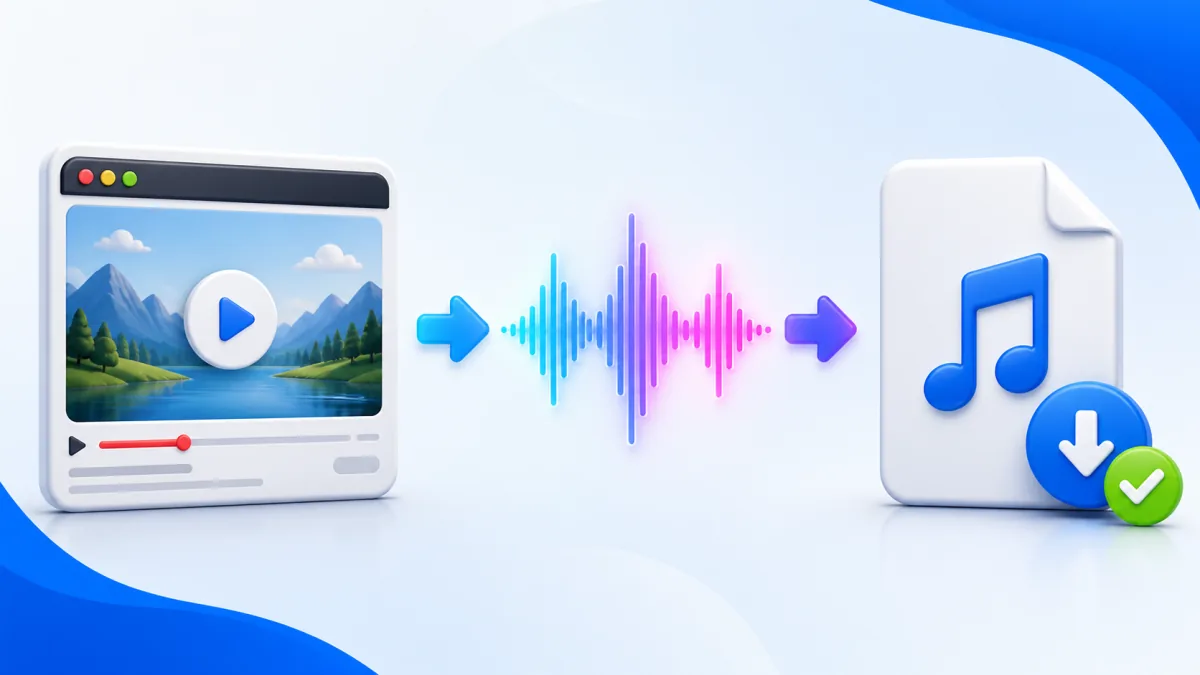
Why 128 kbps for a podcast, when other guides push 320 kbps for everything? Because spoken-word audio compresses beautifully at low bitrates. A three-hour episode at 128 kbps is roughly 170 MB; the same episode at 320 kbps balloons to around 430 MB with zero audible benefit for a human voice. Save the high bitrate for music — our 320 kbps guide for music explains exactly when it is worth the extra size.
Ready to load up your phone? Open the Snap3S MP3 tool, paste an episode link, and pick 128 kbps for the smallest file that still sounds perfect.
Convert YouTube to MP3 →Download a whole podcast playlist at once
If a show lives as a YouTube playlist, you do not have to save episodes one by one. Paste the playlist URL into Snap3S, set MP3 — 128 kbps as the default, and tap Download all. Each episode is saved as its own file, numbered in order so the chronology stays intact.
This is the fastest way to load a full back-catalogue before a trip. If you also want the video versions of any episodes, the download YouTube video in MP4 HD guide covers saving the full clip at up to 1080p.
Import the MP3 into the podcast app you already use
This is where most tutorials fall short, so here is the honest map of what works:
- Apple Podcasts (iPhone / Mac): Apple no longer supports custom local files directly. Use Overcast, Pocket Casts, or VLC instead — all free.
- Overcast (iPhone, recommended): tap + in the bottom tab, then Upload File. Uploads are a Premium feature; on the free tier you can host the MP3 on iCloud or Dropbox and add it by public link.
- Pocket Casts (iPhone / Android, recommended): tap Profile → Files and upload straight from your phone's Files app.
- VLC for Mobile (free, both platforms): open VLC, go to Audio → All files, tap +, and import from Files.
- Apple Music / Music app (iPhone, fallback): drop the file via Files and it appears under Library → Songs. It works for one-offs but does not remember where you paused.
Organising a podcast archive on your phone
A little structure keeps a growing library usable:
- Create a folder per show —
Lex Fridman/,Acquired/,Huberman/— so episodes do not pile into one list. - Snap3S writes each episode's title into the MP3's ID3 tag, so your podcast app displays the real name automatically instead of a filename.
- For long playlists the files are numbered (
01 - Episode 142.mp3), preserving the order you want to listen in. - On Android, drop the folder into
Podcasts/so apps like Pocket Casts detect it automatically.
Listen offline on a flight or commute
This is the whole point, so set it up the night before:
Download your episodes while you are still on Wi-Fi. The files live on the phone, which means they play in airplane mode, in subway tunnels, and on a trail with no signal. Pair your Bluetooth headphones in advance too, so iOS or Android has already negotiated the codec — nobody wants to fiddle with pairing at 30,000 feet.
One bonus: set playback to 1.5x in your podcast app to get through more episodes. Because the MP3 is a standard audio file, every app supports speed control — something YouTube's own offline mode ties to Premium.
Why not just use YouTube Premium?
Premium is a fair option, not a villain — here is the honest comparison:
| YouTube Premium offline | Snap3S MP3 | |
|---|---|---|
| Cost | ~$14/mo | Free |
| Works outside YouTube app | No | Yes |
| Permanent file | No (expires in 30 days) | Yes |
| Plays in podcast apps | No | Yes |
| Background play on phone | Yes | Yes |
| Video included | Yes | No (audio only) |
Premium is great if you want the video and YouTube's own app experience. Snap3S is the answer if you want a portable, permanent audio file that plays in the podcast app of your choice. YouTube itself has pushed podcasts hard since 2023, which is exactly why having the raw MP3 is so useful.
Troubleshooting
- The MP3 is too quiet. Normalise it with a free tool like Audacity or Auphonic before loading it onto your phone.
- Playback stalls on a very long file. Re-download the episode; on rare occasions a file is truncated mid-transfer.
- Pocket Casts refuses the upload. The free tier caps file size — lower the bitrate, trim the episode, or upgrade.
- Apple Podcasts will not import it. It does not support local files at all. Use Overcast or VLC instead.
Frequently asked questions
Quick answers for anyone loading up their phone before a trip. If your question is not here, the steps above cover almost every situation.
Can I download a YouTube podcast for free?
Yes. Snap3S is free and unlimited — no login, no app, and no cap on how many episodes you convert.
What bitrate is best for podcasts?
128 kbps. Spoken-word audio compresses extremely well, so 128 kbps sounds identical to 320 kbps for a human voice while taking up roughly a third of the space. Save the higher bitrates for music.
Can I listen to it in Apple Podcasts?
No, and that is Apple's choice — Apple Podcasts does not support custom local files. Use Overcast, Pocket Casts, or VLC for Mobile instead; all three are free and handle imported MP3s well.
Does this work on long episodes?
Yes. Snap3S handles audio up to about 4 hours per episode, which covers even the longest interview and roundtable shows.
Can I download an entire podcast playlist at once?
Yes. Paste the playlist URL into Snap3S, choose your bitrate, and tap Download all. Each episode saves as its own numbered file so the order is preserved.
Will the episode title show up correctly?
Yes. Snap3S embeds the YouTube episode title into the MP3's metadata, so your podcast app displays the real name rather than a filename.
Load your phone now → Convert any YouTube podcast to MP3 with Snap3S at 128 kbps, drop it into Overcast or Pocket Casts, and listen offline anywhere. Free, no Premium required.
Open the Snap3S MP3 Converter