
YouTube Premium lets you "save" videos, but only inside the app, only while you keep paying, and only for offline viewing that expires. You came here because you want to download a YouTube video as an MP4 — a real file you own, that plays anywhere, forever. Good news: you don't need Premium, a desktop program, or a single account. Paste the link into Snap3S and you get a clean MP4 in the quality your device can actually play, from 360p all the way up to 4K, in under thirty seconds.
In a hurry? Paste any YouTube link into the Snap3S YouTube downloader and choose your quality. No login, no app, no pop-up ads.
Download a YouTube video →The fastest way to download a YouTube video in MP4
Snap3S is a browser-based tool. Nothing to install, no account to create, no permissions to grant. The steps are identical in Safari on iPhone, Chrome on Android, and any desktop browser.
- Copy the YouTube URL. Any format works:
youtube.com/watch?v=…,youtu.be/…, oryoutube.com/shorts/…. - Paste it into Snap3S on the home page and tap Download.
- Pick your quality (360p → 4K) and tap Download MP4. The file saves straight to your device.
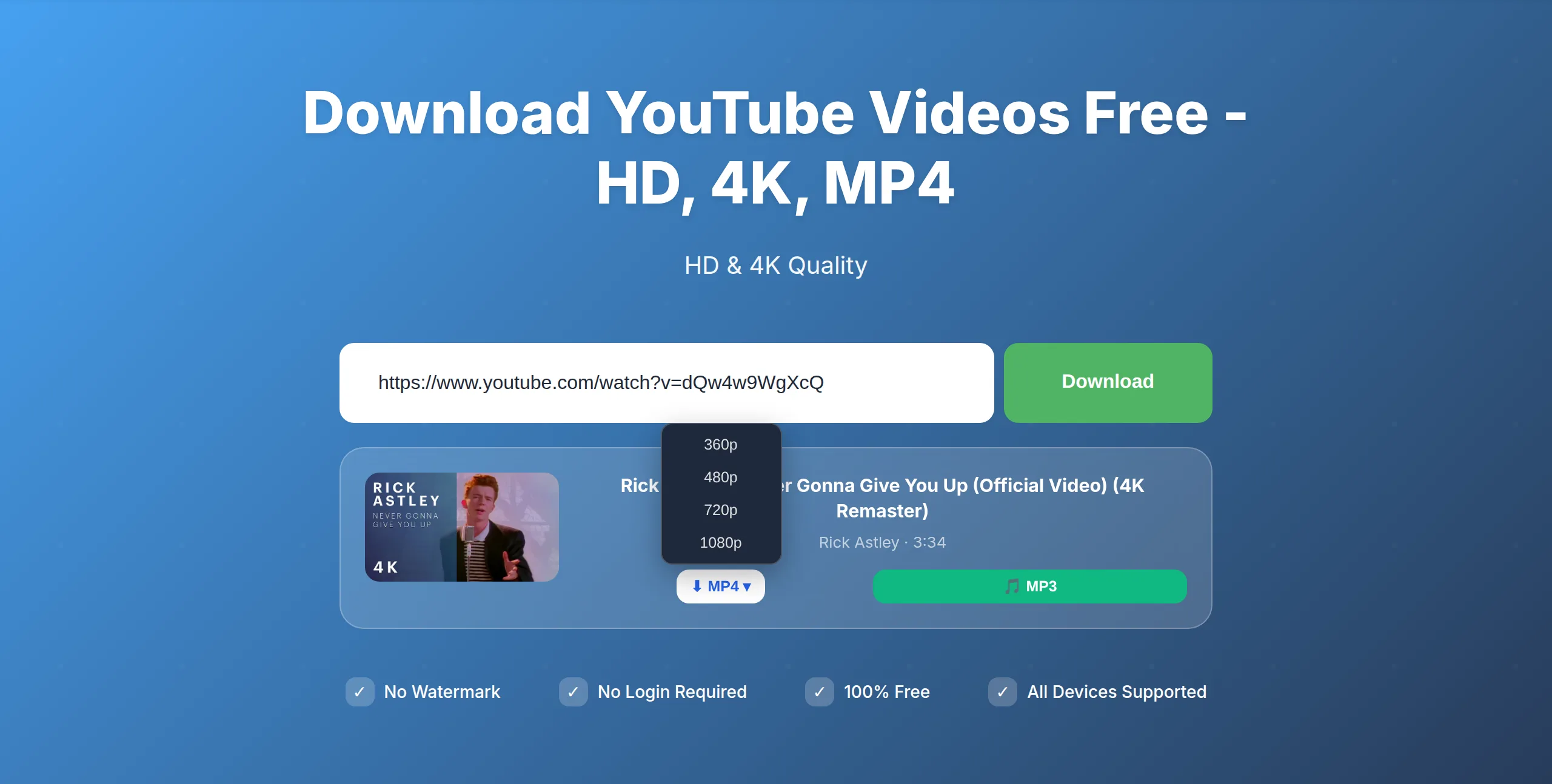
That's the whole thing. No waiting room, no captcha, no redirect to an app store. If you only remember one URL, remember snap3s.com.
Ready to try it? Open Snap3S in a new tab and paste your link. This guide will still be here when you get back.
Download a YouTube video →Which quality should you pick?
Higher isn't always better — a 4K file is enormous and pointless on a phone screen. Use this table to pick the right one for your device and your storage.
| Quality | When to use it | Typical size (5-min video) |
|---|---|---|
| 360p | Saving mobile data | ~25 MB |
| 720p HD | Most phones, social re-uploads | ~70 MB |
| 1080p Full HD | Best default for laptops & 1080p TVs | ~150 MB |
| 1440p (2K) | High-end phones, gaming monitors | ~300 MB |
| 4K (2160p) | 4K TVs, archival copies | ~700 MB – 1.2 GB |
Rule of thumb: pick the highest quality your screen actually supports — anything more is just wasted disk space. A 4K download on a phone looks identical to 1080p to your eyes but eats five times the storage.
Download YouTube videos on iPhone (Safari)
iPhone users are the biggest group of Snap3S visitors, because the App Store has no official YouTube downloader and Apple Shortcuts break every few weeks. Here is the reliable path.
- Copy the video URL from the YouTube app: tap Share → Copy Link.
- Open Safari and go to
snap3s.com. - Paste the link and tap Download.
- Choose your quality and tap Download MP4.
- When Safari asks, tap Download in the dialog. The file lands in Files → On My iPhone → Downloads.
- (Optional) Long-press the file and tap Save to Photos to move it into your Camera Roll.
One honest note: 4K files larger than about 2 GB can fail on older iPhones with little free storage. If a big download stalls, pick 1080p instead — you almost certainly won't see the difference on a phone.
Download YouTube videos on Android (Chrome)
Android handles the same process even more smoothly, because the Downloads folder is auto-indexed by Google Photos.
- Tap Share → Copy Link in the YouTube app.
- Open Chrome and go to
snap3s.com. - Paste the link, tap Download, and pick your quality.
- The MP4 saves to your Downloads folder — visible in any file manager and in the Downloads album in Google Photos.
- Long-press the file to share it straight to WhatsApp, Telegram, or CapCut.
The behaviour is identical on Samsung, Xiaomi, OPPO, and stock Android, because Chrome handles the download — not your phone's system UI.
Download YouTube videos on PC & Mac
On a computer the same three steps apply: paste the URL, pick a quality, and click Download MP4. If you want to choose exactly where the file goes, right-click the download button and select Save link as…, then pick your destination folder. Desktop is also the best place to grab 4K files, where the extra storage and a wired connection actually pay off.
Download YouTube Shorts and long videos
Shorts: Yes — Shorts URLs work exactly the same way. The output is a vertical 1080x1920 MP4. If Shorts are your main use case, read our dedicated YouTube Shorts download guide for the save-to-Camera-Roll and re-upload details.
Long videos and live replays: Videos up to about four hours are supported. Live streams have to be finished with a published replay before you can download them. To grab a whole series in one go, see our playlist and channel download guide.
Why your YouTube download doesn't work (and the fix)
If a download fails, it's almost always one of these four things:
- The video is private or members-only. These can't be downloaded — that's by design, not a bug.
- The video is region-blocked. Try a different network, or wait until you're in a region where it's available.
- The video is age-restricted. Snap3S handles most public age-restricted videos; if one still fails, it may be limited to signed-in subscribers.
- YouTube changed something on their end. Snap3S usually updates within hours. If a download fails today, retry in ten minutes.
For the official rundown of resolution and playback options, see YouTube Help — quality settings.
Is downloading YouTube videos legal?
For personal, offline use — keeping a video to watch on a plane or archiving a clip you love — downloading is broadly tolerated in most countries under fair-use and private-copy rules. The grey area is commercial reuse and re-uploading someone else's work as your own. Always credit creators and respect copyright. We break the whole topic down in our guide to whether downloading YouTube and TikTok is legal. Snap3S is a tool, like a web browser: what you do with the file is up to you.
Frequently asked questions
Quick answers to the questions people ask most. If yours isn't here, just paste a link into Snap3S — it usually answers itself.
Can I download YouTube videos in 4K?
Yes, as long as the creator uploaded the video in 4K. Pick the 2160p option in the quality picker. If the highest option shown is 1080p, that's the best the original upload offers.
Is Snap3S free? Do I need an account?
It's 100% free. No sign-up, no payment, no app to install, and no daily limit. Download as many videos as you like.
Does it work on iPhone without an app?
Yes. Open Safari, go to snap3s.com, and follow the iPhone steps above. There is nothing to install from the App Store.
Can I download a full YouTube playlist?
Yes. Paste the playlist URL instead of a single video URL and select the videos you want. See our playlist download guide for the full method.
Can I extract just the audio as MP3?
Yes. Paste the same URL into our YouTube to MP3 converter and choose MP3 instead of MP4. For the highest bitrate, see our 320 kbps guide.
What's the longest video I can download?
Up to about four hours. Very long files are large, so download them on a computer or over Wi-Fi rather than on mobile data.
Try Snap3S now → Paste any YouTube URL and download a clean MP4 in the quality your device can play, up to 4K, in under thirty seconds. Works on every device, no app.
Open the Snap3S YouTube Downloader