
Saving a TikTok with the app's built-in download button always stamps a logo across the video. That kills reposts, ruins CapCut edits, and makes the clip useless as a phone wallpaper. The good news: you don't need an app, a Shortcut, or a sign-up to fix this. Paste any TikTok link into Snap3S and you'll have a clean MP4 in under ten seconds.
In a hurry? Paste your TikTok URL into Snap3S and your watermark-free file is ready in 10 seconds. No login, no app, no popups.
Download a TikTok now →The fastest way: download TikTok videos with Snap3S
Snap3S is a browser-based tool — there's nothing to install, no account to create, and no permissions to grant. It works the same way in Safari on iPhone, Chrome on Android, and any desktop browser.
- Open the TikTok video and tap Share → Copy Link.
- Paste the link into the Snap3S input box on the homepage.
- Tap Download and pick MP4 — No Watermark. Your file saves to your device's Downloads folder.
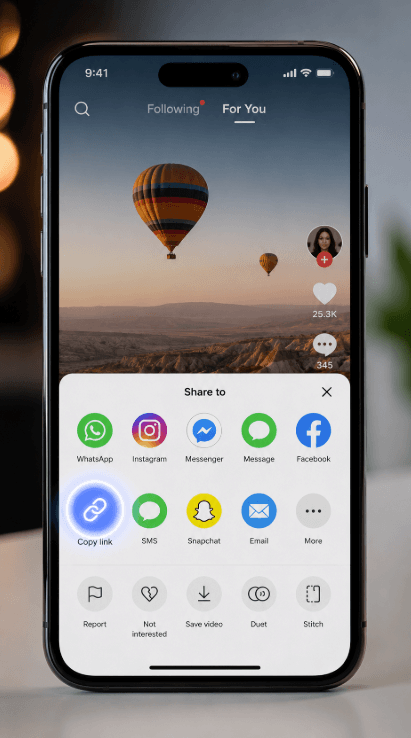
That's it. The whole flow takes about ten seconds on a normal connection. There's no waiting room, no captcha, and no app store redirect.
Ready to try it? Open Snap3S in a new tab and paste your TikTok link. We'll keep the rest of this guide here for when you come back.
Download a TikTok now →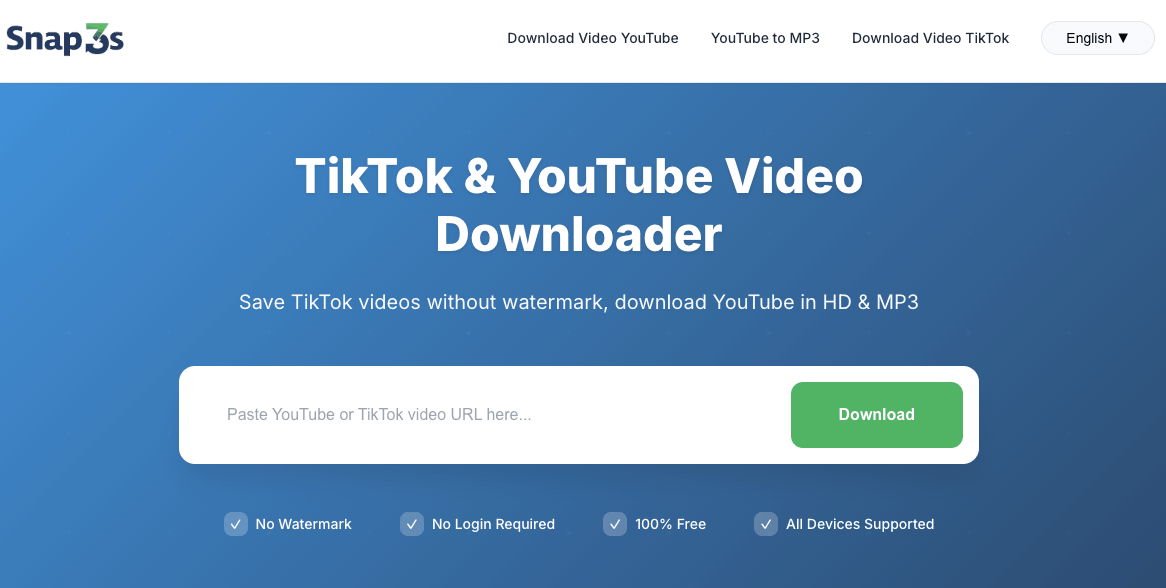
Download TikTok videos on iPhone without an app
iPhone users are the most common Snap3S visitors because the App Store has no first-party TikTok downloader and Apple Shortcuts break every few weeks. Here's the no-friction path:
- Open the TikTok video and tap Share → Copy Link.
- Open Safari and go to
snap3s.com. - Paste the link and tap Download.
- Choose MP4 — No Watermark.
- When Safari asks, tap Download in the dialog. The file lands in Files → On My iPhone → Downloads.
- (Optional) Long-press the file and tap Save to Photos to move it into your Camera Roll.
It works the same in Chrome and Firefox on iPhone — the steps don't change. If you can't find your file, open the Files app and look under Browse → On My iPhone → Downloads.
Download TikTok videos on Android
Android handles the same flow even more smoothly because the Downloads folder is auto-indexed by Google Photos.
- Tap Share → Copy Link in TikTok.
- Open Chrome and go to
snap3s.com. - Paste the link, tap Download, choose MP4 — No Watermark.
- The file saves to your Downloads folder — visible in any file manager and in the Downloads album in Google Photos.
- Long-press the file to share it directly into CapCut, WhatsApp, Telegram, or Instagram.
The behavior is identical on Samsung, Xiaomi, OnePlus, and stock Android because the download is handled by Chrome, not the OS skin.
Why your downloaded TikTok still has a watermark (and how to fix it)
If you tried another tool first and ended up with a watermarked video, one of these three things is happening:
- You used TikTok's built-in Save Video button. The native save always stamps the creator's username across the clip. Switch to Snap3S, which fetches the original source instead of the rendered watermarked copy.
- The downloader scraped the wrong stream. Some older sites grab the watermarked render that TikTok serves to feeds. Snap3S pulls the clean version that's used inside TikTok's own re-edit feature.
- The video is a duet or stitch with a baked-in watermark. When someone duets another creator, the second creator's logo is permanently part of the video pixels. No downloader can remove that — cropping the frame is the only option.
Bonus: download just the audio (TikTok sound to MP3)
Snap3S also lets you save just the audio from any TikTok — useful for ringtones, remixes, or layering over your own footage. After pasting the link, choose MP3 instead of MP4. Full details for slideshow and photo-mode posts are in our TikTok slideshow guide.
Is it legal to download TikTok videos?
For personal use — saving a clip to watch offline, edit privately, or set as a wallpaper — downloading TikToks is broadly accepted under fair-use and private-copying rules in most countries. Where it gets murky is re-uploading without credit or using someone else's video commercially. Always credit the creator when you share, and respect takedown requests. For the full plain-English breakdown, see our guide to YouTube and TikTok download legality.
Snap3S is a tool — like a web browser. We don't store the videos you download, we don't ask you to log in, and we don't share data with TikTok. What you do with the file is your call.
Frequently asked questions
Quick answers to what readers ask most often. If your question isn't here, just paste your link into Snap3S — it usually answers itself.
Does Snap3S really remove the TikTok watermark?
Yes. Snap3S fetches the original video source from TikTok's servers, not the watermarked render that TikTok serves to public feeds. You get a clean MP4 with no logo, no overlay, and no username stamp.
Is Snap3S free? Do I need an account?
100 % free. No sign-up, no app install, no daily limit. Download as many TikToks as you want.
Can I download TikTok videos in HD?
Yes. Snap3S delivers the original quality the creator uploaded — usually 1080×1920 vertical MP4. If the creator uploaded in a lower resolution, that's the ceiling.
Will TikTok know I downloaded the video?
No. Snap3S works without logging into TikTok. The creator gets no notification and the video's view count isn't affected.
Does this work on private TikTok videos?
No. Only public videos can be downloaded. Private accounts and friends-only posts are blocked by TikTok's API and we don't try to work around that.
Can I download TikTok slideshows and photo posts?
Yes. Snap3S supports photo-mode posts and saves every image as a separate file, plus the audio as MP3. See our TikTok slideshow guide for the full walkthrough.
Try Snap3S now → Paste any TikTok URL and download a clean, watermark-free MP4 in under ten seconds. Works on every device, no app required.
Open Snap3S TikTok Downloader