
Apple charges $1.29 to turn a song into a ringtone — and only if the track happens to be in their store. With a free YouTube MP3 and one extra step, you can use any song, snippet, or sound as your ringtone instead. This guide walks you through the whole thing on both phones, including the Snap3S YouTube to MP3 320kbps converter download and the GarageBand trick that makes it work on iPhone without paying a cent. It takes about five minutes the first time and two minutes after that.
Start here: grab the song as an MP3 from Snap3S — free, no login — then follow the steps below for your phone.
Download the song as MP3 →Step 1: Download the YouTube song as MP3
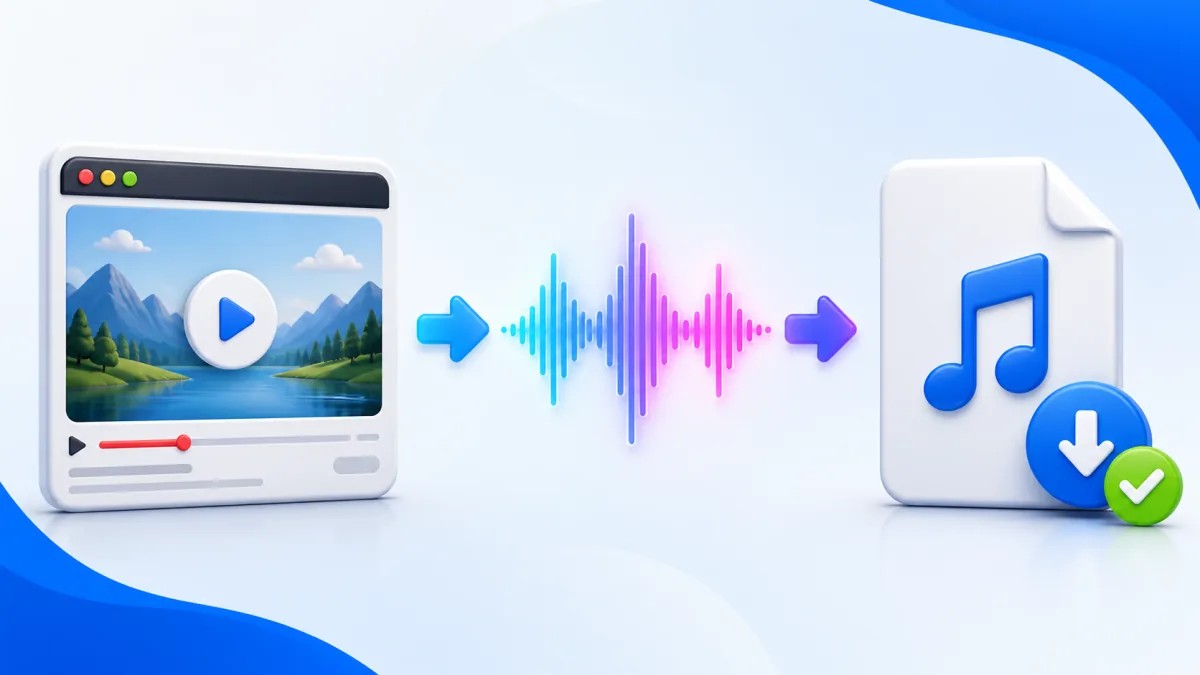
First you need the audio on your phone. Snap3S handles this in your browser, so there is nothing to install.
- Paste the YouTube URL into Snap3S on the main page.
- Choose MP3 — 320 kbps and tap Download. The file saves to your Downloads folder.
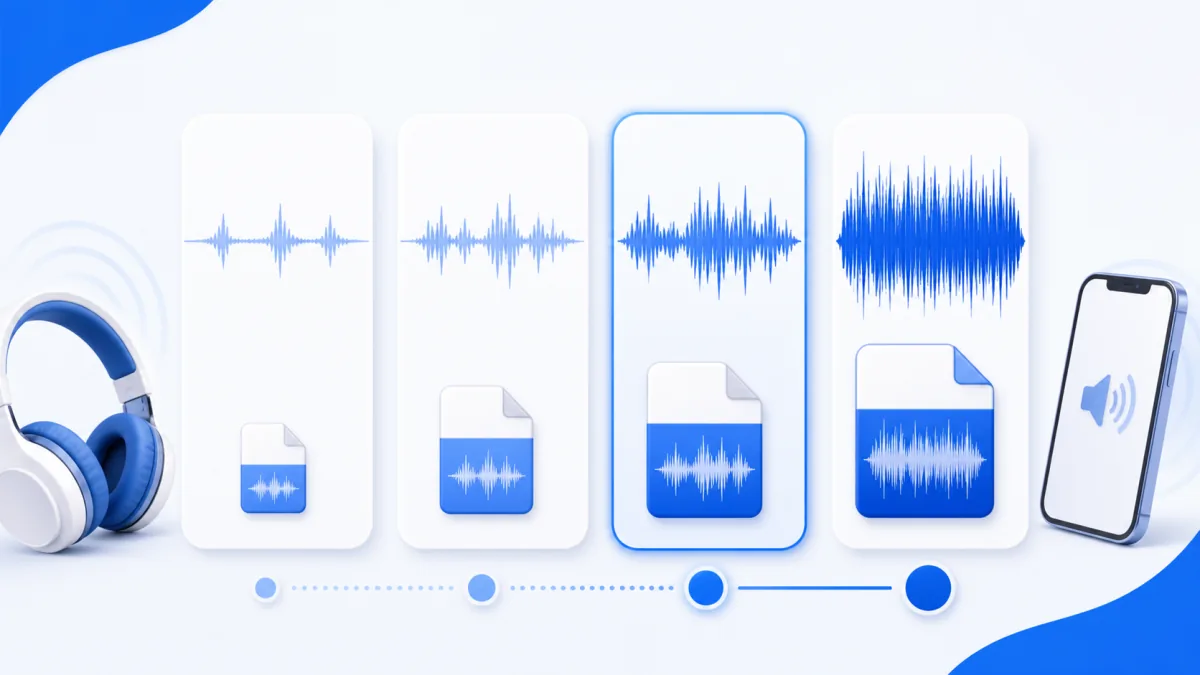
If you are curious why 320 kbps is the quality to grab, our 320 kbps explainer breaks down what bitrate actually means. One practical tip: pick the version of the song with the cleanest intro, because your ringtone starts playing from second zero — you do not want two seconds of silence before it kicks in.
Step 2: Trim the MP3 to ringtone length
iPhone ringtones max out at 30 seconds; Android is usually happy with 30–40 seconds. So before you set anything, cut the file down to the part you actually want to hear.
Use whichever tool fits your device:
- GarageBand (iPhone, free) — you will use this anyway in the next step, so you can trim there.
- Audacity (PC or Mac, free) — drag in the MP3, select the segment, and export.
- MP3 Cutter (Android, free) — a simple, well-known trimmer for on-phone editing.
Aim for the catchiest 5–15 seconds. A ringtone rarely rings for more than eight seconds before you answer, so the hook matters far more than the full chorus.
Step 3 (iPhone): turn the MP3 into a ringtone with GarageBand
This is the part most people do not know exists — and the reason you do not have to pay Apple. GarageBand is free, and it can export any audio clip straight into your ringtone list.
- Save the MP3 to Files → On My iPhone → GarageBand.
- Open GarageBand, tap + to start a song, choose Audio Recorder, then switch to the Tracks view.
- Tap the loop icon (top-right) → Files → Browse items from the Files app and pick your MP3.
- Drag the clip onto the track and make sure it fits inside the 30-second range.
- Tap the down-arrow (top-left) → My Songs, then long-press your project and choose Share → Ringtone.
- Name it, tap Export, then Use sound as… → Standard Ringtone. Done.
Your new ringtone now lives under Settings → Sounds & Haptics → Ringtone, ready to select. For the full official flow, Apple's own GarageBand ringtone guide covers the export step in detail.
Need the audio first? Convert any YouTube track to MP3 with the Snap3S MP3 tool, then come back and finish the GarageBand steps.
Convert YouTube to MP3 →Step 3 (Android): set the MP3 as your ringtone
Android is simpler — there is no GarageBand step. You just put the file in the right folder and point the system at it.
- Move the MP3 into the
Ringtones/folder on internal storage using any file manager. - Open Settings → Sound → Phone ringtone.
- Tap Add or the + icon and pick your MP3.
- Set it as your default ringtone. That is it.
Samsung labels this "Sounds and vibration" and Xiaomi calls it "Ringtone," but the flow is identical — the MP3 must sit in the Ringtones/ folder for the phone to see it.
Set a custom ringtone for a single contact
Want a specific song to play only when one person calls? Both phones support it:
- iPhone: open Contacts, tap the person, then Edit → Ringtone and pick your custom one.
- Android: open Contacts, tap the person, tap the menu (three dots), then Set ringtone.
Ideas for great ringtones (and what to avoid)
A ringtone only plays for a few seconds, so the clip you choose matters more than you think:
- Good: a 5-second hook from a song you love.
- Good: a vocal sample — an iconic line or a movie quote.
- Good: a calm ambient sound (rain, lo-fi piano) if you would rather not be startled.
- Avoid: a full chorus. Your phone rarely rings long enough to reach it.
- Avoid: songs with a quiet intro. The caller will think your phone is on silent.
The same trick works for TikTok sounds too — grab the audio with our TikTok downloader and run it through the same steps.
Troubleshooting
- GarageBand's "Share to Ringtone" is greyed out. Your clip is longer than 30 seconds. Trim it and try again.
- Android only shows pre-installed ringtones. The MP3 is not in the
Ringtones/folder. Move it there and re-open Settings. - The ringtone plays too quietly. Boost the track volume in GarageBand before exporting, or normalise the file in Audacity first.
Frequently asked questions
Short answers to the questions people ask most about making YouTube ringtones. If yours is not covered, the steps above handle almost every case.
Is making a YouTube ringtone legal?
For personal use on your own phone, yes — this falls under personal-use norms in most countries. Just do not redistribute or sell the file. For a fuller picture, see our guide on whether it is legal to download YouTube and TikTok content.
What format do iPhone ringtones need?
iPhone ringtones use the .m4r format, but you do not need to worry about it — GarageBand converts your MP3 automatically when you export as a ringtone.
Can I use any YouTube song?
Yes, as long as the video is public. Paste the link into Snap3S, download the MP3, and follow the steps for your phone.
Why is my iPhone ringtone limited to 30 seconds?
That is an iOS limit, not a Snap3S one. GarageBand will refuse to export a ringtone longer than 30 seconds, so trim your clip to fit.
Do I need to pay for GarageBand?
No. GarageBand is a free download from the App Store, and the ringtone export feature is included at no cost.
Can I make a custom alarm sound the same way?
On Android, yes — save the MP3 into the Alarms/ folder instead of Ringtones/. On iPhone, alarms can only use Apple's built-in library, so this GarageBand trick does not apply to alarms.
Make your ringtone now → Convert the song to MP3 with Snap3S, trim the best few seconds, and set it in minutes. Free on iPhone and Android, no app store purchase needed.
Open the Snap3S MP3 Converter